HEADMOUSE · GETTING STARTED · VERSION 0.3.1
A little setup.
Then, make your move.
The initial desktop package targets Ubuntu 26.04 with GNOME 50 and a TH21A headband. Start here to install, connect, and tune the controls.
Check your setup.
- Desktop: Ubuntu 26.04 with GNOME Shell 50. The package is not advertised as compatible with Ubuntu 24.04, Ubuntu 22.04, or other GNOME major versions.
- Hardware: the SereniBrain® TH21A headband and a working Bluetooth LE adapter. Other head trackers are planned.
- Connection: turn on the headband nearby, unplug it from charging, and disconnect its phone app before using it here.
Headmouse is independent software. It is not affiliated with, endorsed by, or sponsored by SereniBrain or its manufacturer.
Install the desktop package.
Download the Ubuntu package and open a terminal in the folder where you saved it. Then run:
sudo apt install ./serenibrain-mouse_0.3.1-1_all.debAPT installs dependencies from Ubuntu’s repositories. Log out and back in once so GNOME discovers the Bluetooth menu extension. The package does not restart your desktop.
The initial release retains the serenibrain package, launcher, and command names. In Applications, launch SereniBrain Mouse to open the controls immediately and start the service for your session.
Connect and find center.
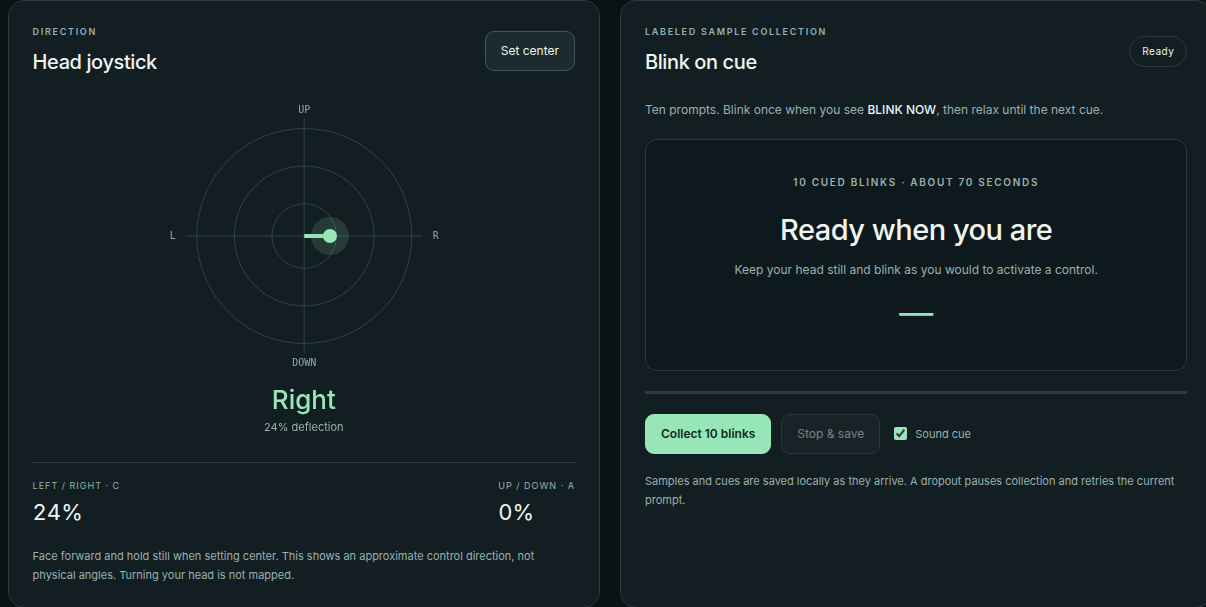
Turn on the TH21A, face forward, and hold still. The session service discovers the headband and establishes center from the first 40 uninterrupted packets, roughly 1.6 seconds after streaming starts. It repeats this centering process after reconnection.
Open Quick Settings → Bluetooth and select the TH21A’s Mouse settings entry. If the menu is missing, open the tuning window from Applications and use Enable menu integration.
Pause Headmouse before switching to your regular mouse. While active, the initial release owns the pointer position.
Find a feel that fits.
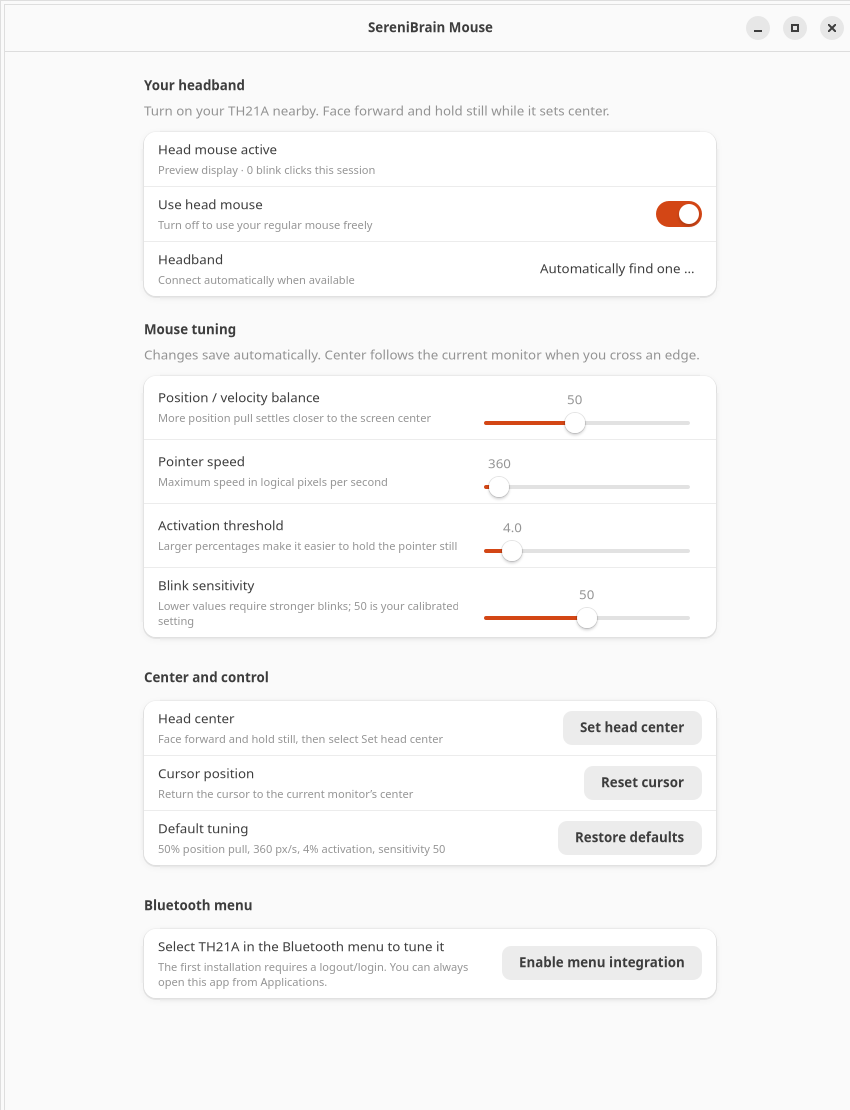
Changes in the tuning window save automatically and take effect while running.
| Control | Starting point and effect |
|---|---|
| Position / velocity balance | 50% position pull. Lower values give more travel for the same tilt; higher values make the relationship more positional. |
| Pointer speed | 360 logical pixels per second. Changes the rate of travel. |
| Activation threshold | 4%. Sets the small zone where the pointer stops moving. |
| Blink sensitivity | 50. Lower values require stronger matching pulses; higher values allow softer ones. |
| Use head mouse | Pause or resume. The choice is remembered across restarts. |
| Set head center | Recalibrate with your head facing forward and held still. |
| Reset cursor | Return the pointer model to the current monitor’s center. |
Look up or down and tilt left or right for movement. Returning your head to center pulls the pointer toward the current monitor’s center until it settles inside the activation zone. Crossing into another monitor switches the reference.
Pause from a terminal.
serenibrain mouse-control pause
serenibrain mouse-control resume
Know the current limits.
- Linux absolute pointer movement, monitor crossing, and live blink clicks have been tested on the project’s GNOME/Wayland desktop. This is an early release, with limited hardware and user validation.
- The blink estimator uses a bundled personal profile. Its sensitivity may need tuning for you. A similar involuntary blink, yawn, or other movement can trigger a click.
- Clicks are single left clicks. Dragging, right clicks, and a separate double-click action are not implemented.
- The installed package uses the absolute mouse backend. The separate tablet backend remains experimental.
- Native macOS output is not implemented or tested. The source includes an implementation handoff. Windows desktop control is not currently supported.
- Do not start a second independent Bluetooth reader while the installed service owns the tracker.
The service freezes pointer movement and releases its button on stale input, while the desktop is locked, or when the login session is inactive. A deliberate pause stays in effect until you resume it.
Explore the source.
Download the version 0.3.1 source bundle for the Linux service, browser research dashboard, tests, configuration, and macOS implementation handoff. Python 3.11 or later is required. After extracting the bundle, run these commands from its project folder:
python3 -m venv .venv
.venv/bin/python -m pip install -e '.[linux]'
.venv/bin/serenibrain mouse-layout
Follow the bundled docs/LINUX_MOUSE.md for source-based use on other Linux desktops. Source mode defaults to a dry run; native pointer output is explicitly enabled. Read docs/MACOS_HANDOFF.md for the planned Mac port.
BLE capture, research EEG features, and the older virtual gamepad are separate experiments. The EEG feature has not demonstrated reliable voluntary control. The head mouse uses observed head movement and the experimental blink estimator.
Download SHA-256 checksums. To verify downloaded artifacts from their folder:
sha256sum --ignore-missing --check SHA256SUMS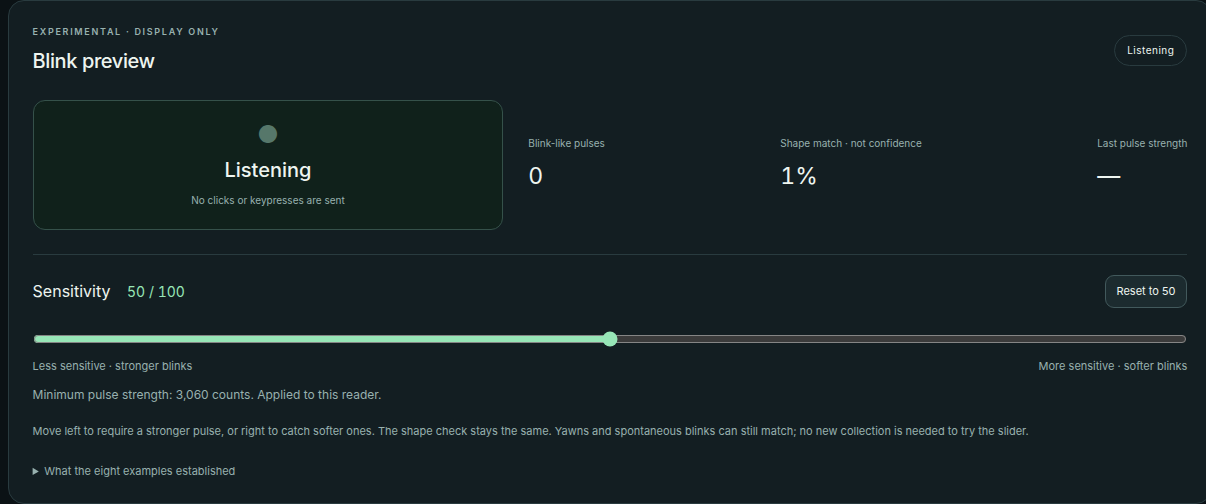
Troubleshoot or remove.
Open the settings window, inspect the session service, or check its recent logs:
serenibrain-settings
systemctl --user status serenibrain-mouse.service
journalctl --user -u serenibrain-mouse.service -n 50
To remove the installed package:
sudo apt remove serenibrain-mouseRemoval stops this package’s running user services and disables its extension. Your personal settings remain in ~/.config/serenibrain/ or the equivalent under $XDG_CONFIG_HOME.