Connect.
Turn on a supported head tracker. The Linux service connects over Bluetooth.
 headmouse
Get Headmouse
headmouse
Get Headmouse
HEAD MOVEMENT. DESKTOP CONTROL.
A mouse doesn’t have to fit in your hand. Move your pointer with your head, explore blink clicks, and tune the controls to feel like you.
Independent softwareLinux release 0.3.1More trackers planned
01 — THE IDEA
A mouse doesn’t have to fit in your hand.
Headmouse translates head movement into pointer movement. Look up or down, tilt left or right, and explore your desktop. A matching blink can trigger a single left click.
Adjust how far a tilt takes you, how quickly the cursor travels, and how much movement it takes to get going. Find the balance that feels right for you.
Read the getting-started guideTurn on a supported head tracker. The Linux service connects over Bluetooth.
Face forward and hold still as the initial center is set. Recenter whenever you need.
Move, tune, pause, repeat. Your settings save as you adjust them.
02 — THE ACTUAL CONTROLS
Four controls. No one-size-fits-all feel.
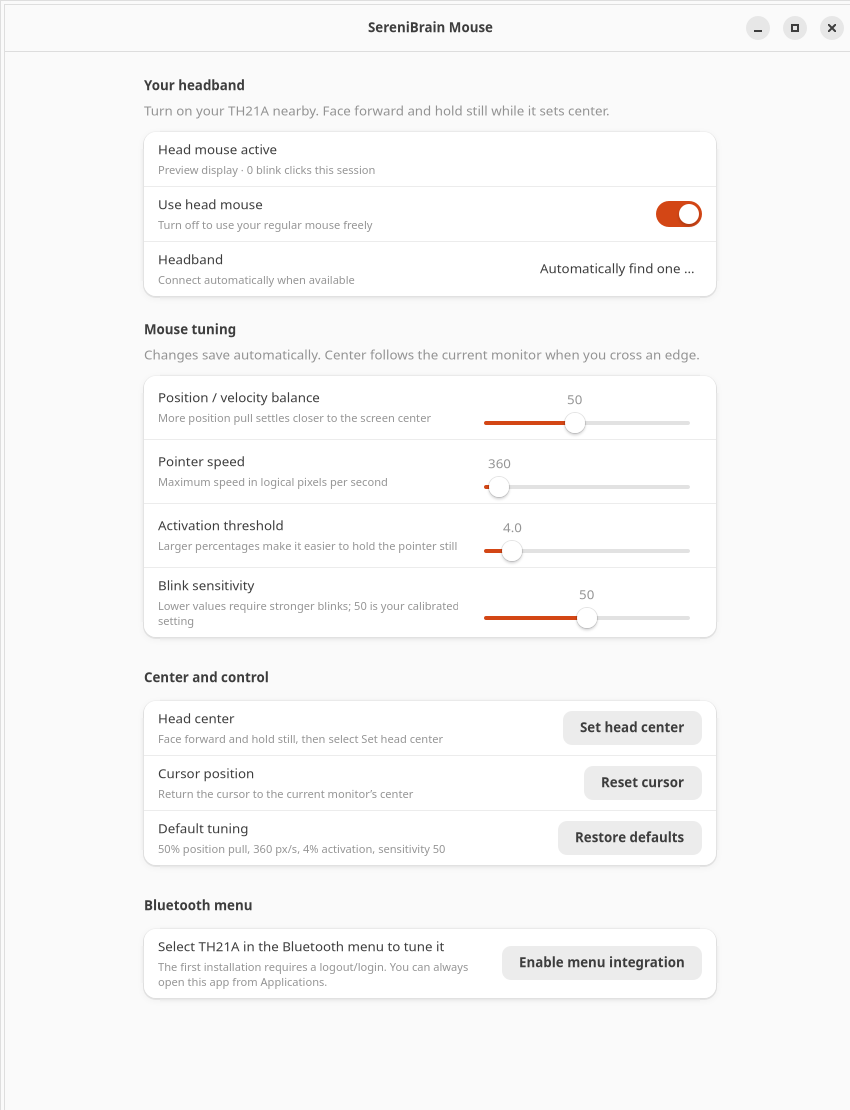
The native Linux configuration window puts movement and blink settings in one place. Changes save automatically and take effect while running.
03 — THE BROWSER CONTROLLER
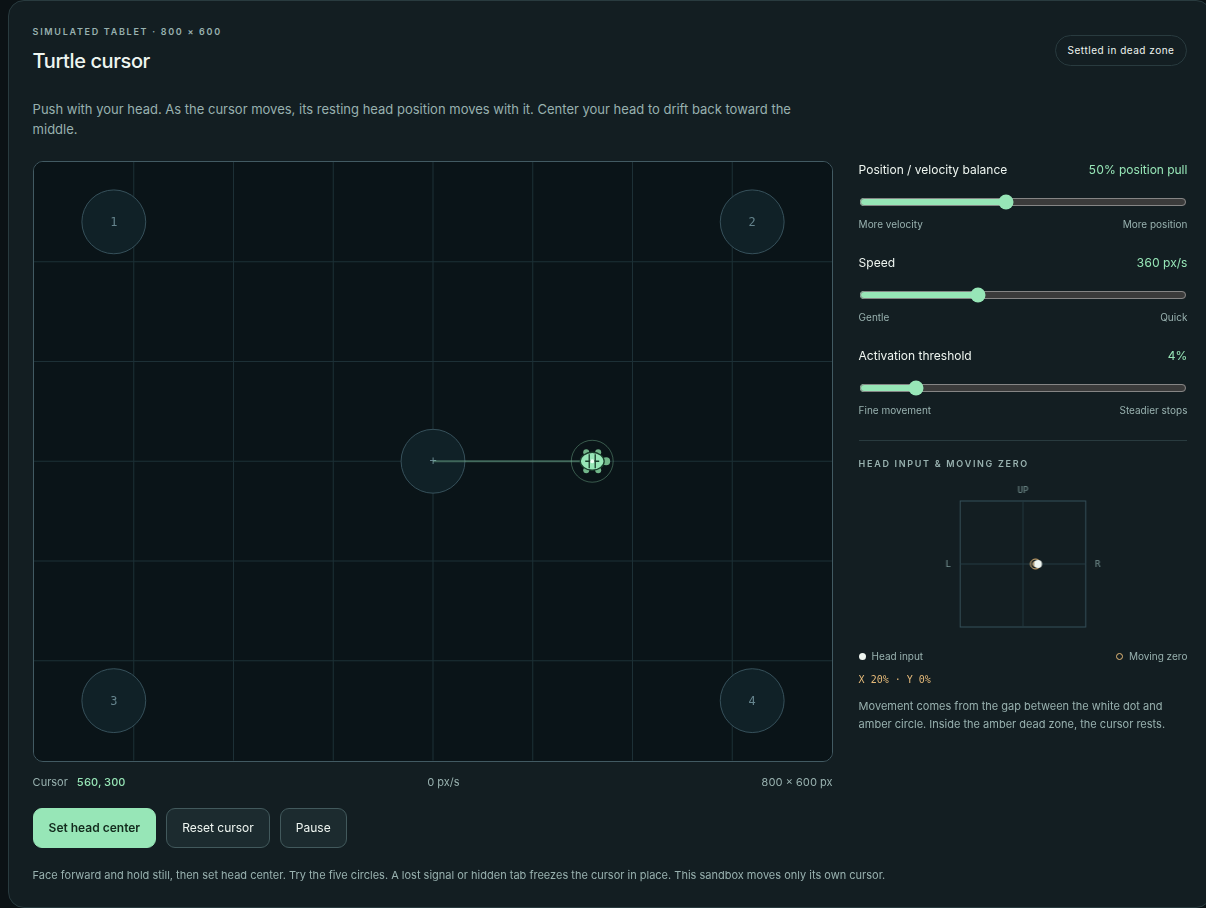
The project’s browser controller includes Turtle cursor, with settings for position/velocity balance, speed, and activation threshold. This screenshot shows the actual tool.
04 — ROOM TO GROW
Starting with one headband and a working Linux release. More head trackers are on the roadmap.
Initial hardware: the SereniBrain® TH21A, connected over Bluetooth LE. Head movement and blink clicks have been tested on the project’s Linux desktop.
Support will expand beyond the initial device. Additional models and release dates haven’t been announced.
The desktop package targets Ubuntu 26.04 with GNOME 50. Native macOS support is a development handoff, not an available release. Windows desktop control is not currently supported.
05 — YOUR NEXT MOVE
Start with the Linux release, read the setup guide, and make a little room for a new way to move.
HEADMOUSE · EARLY RELEASE 0.3.1The initial release retains its original serenibrain package and command names. Downloads include the project’s personal blink profile; sensitivity may need tuning for you.
A FEW GOOD QUESTIONS
No. Headmouse is an independent software project. It is not affiliated with, endorsed by, or sponsored by SereniBrain or its manufacturer. The name identifies compatible hardware only.
Yes, for desktop control. The initial release uses the TH21A over Bluetooth LE. Support for other head trackers is planned.
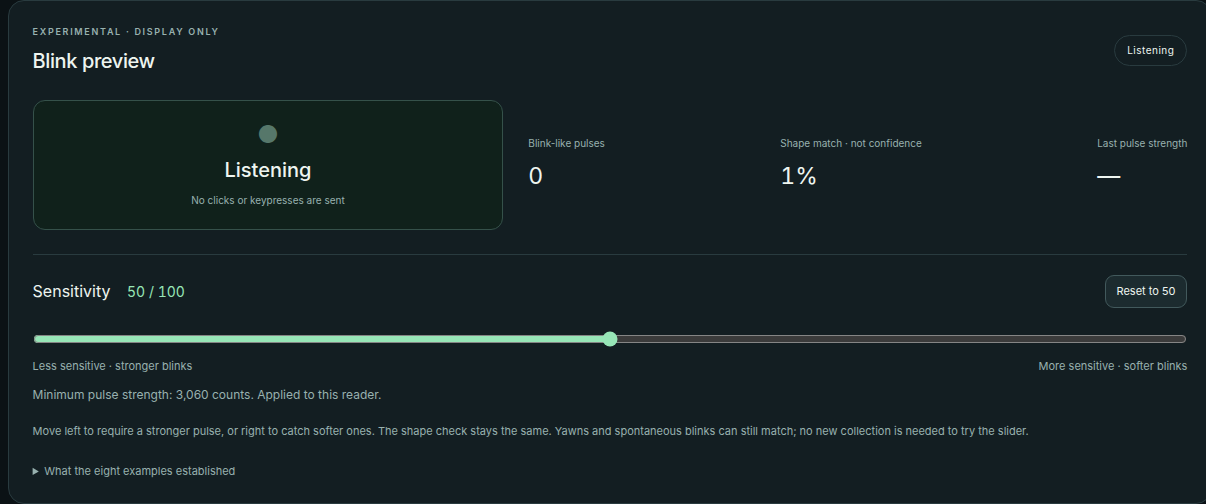
The current implementation sends a single left click when it detects a matching blink waveform. Right clicks, dragging, and a separate double-click action are not implemented. The estimator is experimental and can also respond to involuntary blinks or similar movements.
Pause Headmouse before switching to a regular mouse. While active, the initial Linux release owns the pointer position. You can pause or resume from its settings window.
The desktop software processes the tracker’s readings locally. Recordings made with the research tools stay on your machine. This website provides project information and downloads; it does not connect to your tracker.